
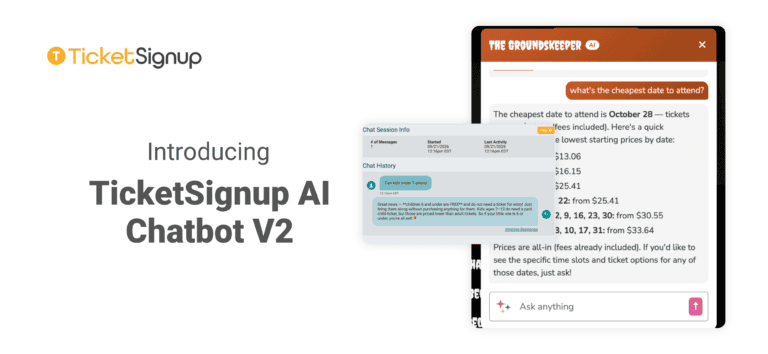
Attendees ask the same handful of questions before they buy. Which night is cheapest? Is Saturday sold out? What time slots are left on October 25? Do you sell parking? The TicketSignup AI Chatbot has been answering those questions on event websites since 2025, and it is free for every event.
V2 rebuilds it on our next generation AI infrastructure, giving it direct access to the live data behind your event. For calendar-based events, that opens up a whole new category of questions the chatbot can answer.
Why V2?
The chatbot has been doing real work. It reads your website content and your FAQ component, it handles policies, parking, directions, and what to bring, and events running it report a meaningful drop in support email.
V2 widens what it can reach. Alongside your website content, the chatbot now queries your event setup directly, so a question about Friday’s ticket price or whether the 7:00 PM slot still has room comes back with live data. Website content tells the chatbot about your event. Your event data tells it the numbers that change.
What Is Different in V2
V2 gives the chatbot two sources to draw on. Your website content feeds an event-specific knowledge base. Your event description, directions, policies, and FAQ answers all teach the chatbot about your event, and that content re-indexes within 10 to 15 seconds when you change it. Your event data is the new part, and the chatbot reaches it through MCP tools.
What the MCP Tools Do
MCP is the Model Context Protocol, an industry standard for defining what an AI agent is allowed to look up. Behind the chatbot sits a library of roughly 40 of these tools, each with a strict schema and a strict scope. The chatbot calls the tool that holds the answer:
- Ticket prices, scheduled price increases, and discounts
- Event dates, time slots, and hours
- Availability and sold out status
- Store items and add-ons
The agent powering your public event page is anonymous and read only. It looks things up. It has no path to change an order, a ticket, or your event setup. We covered that architecture in detail in AI Data, Security and Privacy at TicketSignup.
Dates and Pricing, Without Leaving the Conversation
The chatbot does a great job understand dates and pricing. Have a price increase scheduled for next week? The Chatbot will let customers asking about pricing to buy before the price goes up. Need to adjust the start time of your festival? Update in the dashboard, and the changes automatically get synced to your website and Chatbot.
Calendar-based events are where V2 shows its real power, and the reason comes down to how TicketSignup is built. Our calendar-based ticketing runs on patent-pending calendar ticketing technology. The calendar is not a layer added on top of a bunch of single event records. It is the structure itself, from the setup wizard through the purchase path, which is why an event can run 30 nights of a haunt, a full holiday light season, or year-round admission without rebuilding anything by hand when adjusting prices, dates, and times.
The chatbot reads that same structure. Ask it which date is cheapest and it queries your calendar, compares starting prices across every date on sale, and answers with real numbers.
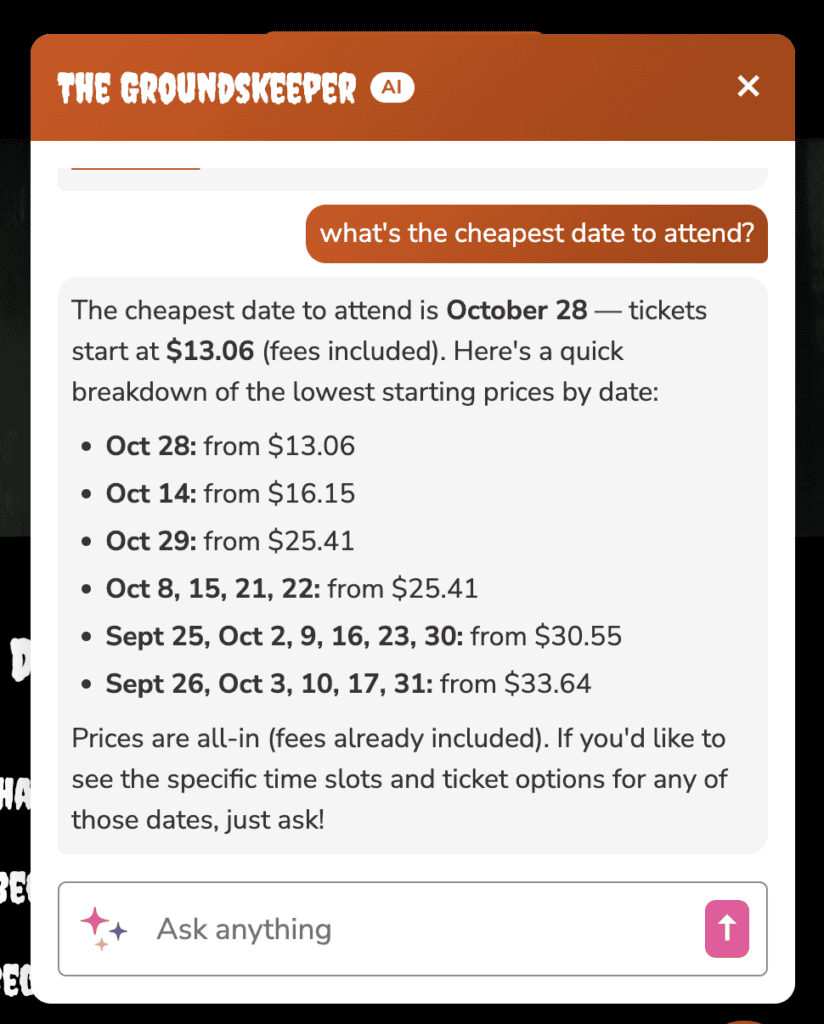
Narrower questions get narrower answers. Which time slots remain on Saturday. Whether 8:00 PM has sold out. What a VIP ticket costs on an October Friday compared to a September Thursday. What discount do members or season pass holders get. Each answer comes out of your event setup, so it updates the moment you do.
The more complex your calendar, the more this matters. If your event sells dozens of dates, hundreds of time slots, and pricing that shifts by day of week and even time of day, the chatbot handles all of it straight from your setup.
Add-Ons and Upsells in the Conversation
The chatbot can reach your Store, so a question can end in a sale.
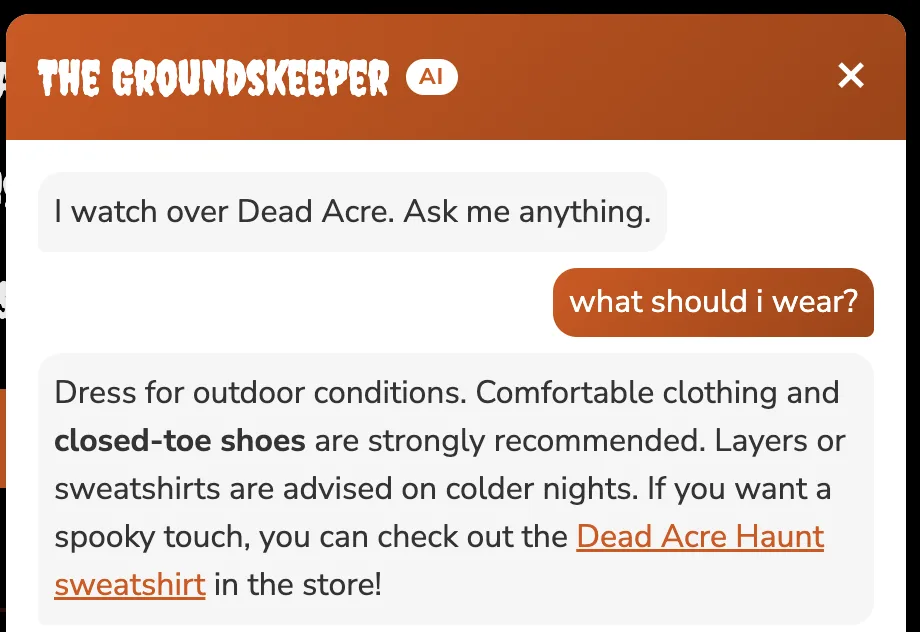
An attendee asking what to wear on a cold October night is a good candidate for a sweatshirt. One asking when to arrive may want a parking pass or a fast pass. V2 points them to the right item and links them to it, inside the answer they already asked for. The recommendation works because it answers the question rather than interrupting it.
Last Minute Changes
Outdoor events lose nights. The forecast turns, hours shift, and a date goes dark. Update your event in TicketSignup and add the new information to your website, and every attendee who asks about that night gets the current answer. Your website, the chatbot, and your contact form all read from the same place, so you update once.
How to Get Started
Adding the AI Chatbot to your free event website is optional and free. If you already had the AI Chatbot (Beta) on your ticket event website, you don’t need to do anything – it’s the same chatbot with improved data understanding.
If you haven’t added the chatbot to your free event website, go to AI Chatbot V2 >> Chatbot Setup. You need to have a FAQ component on your website with at least 3 questions & answers in order to provide the chatbot additional knowledge outside of your event setup (Is there free parking? Can I bring my dog? Are kids allowed?, etc.) The chatbot uses your website content and your FAQ component as its primary sources, so the more you answer there, the more it has to work with. Most events should aim well past three.
Three screens handle the rest:
- Chatbot Setup. Name the chatbot, write its greeting, and set the contact email attendees see if they hit a problem. Upload a square 128 x 128px logo for the chat bubble. Theme styling matches your website automatically, and one toggle turns the chatbot on or off.
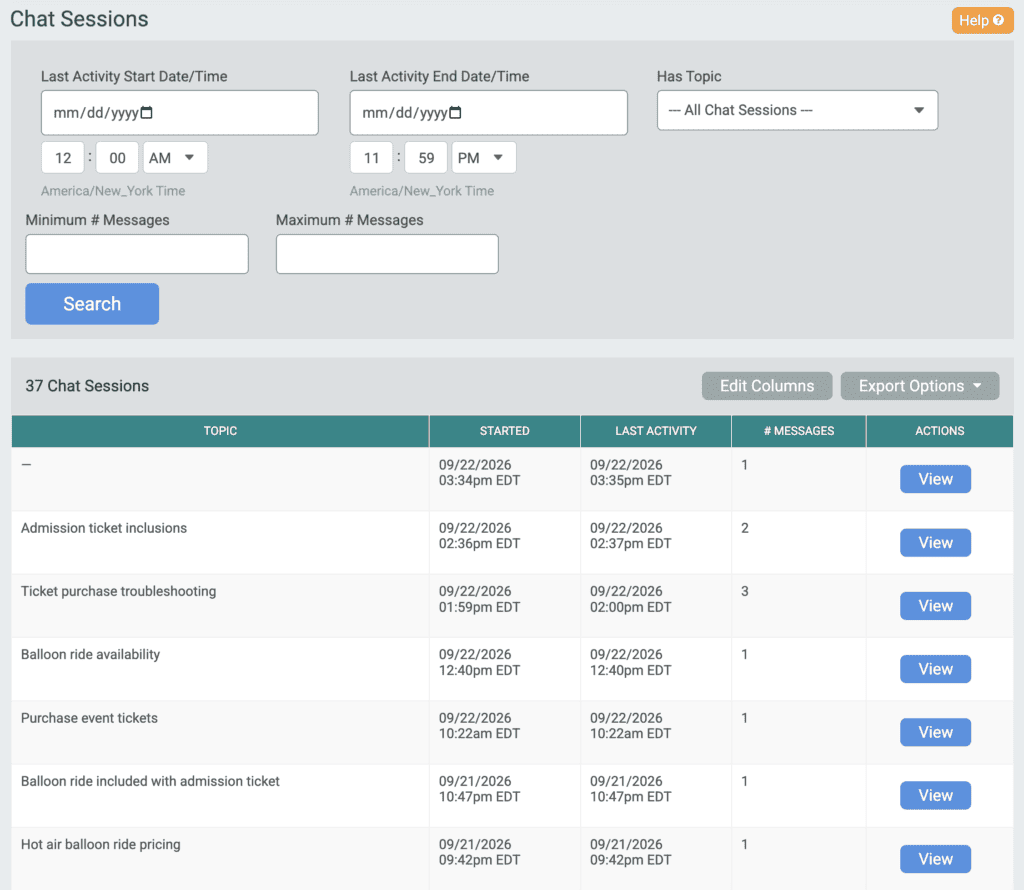
- Conversations. Read what attendees actually asked. Open any conversation to see the full exchange, with Improve Response at the bottom of each answer.
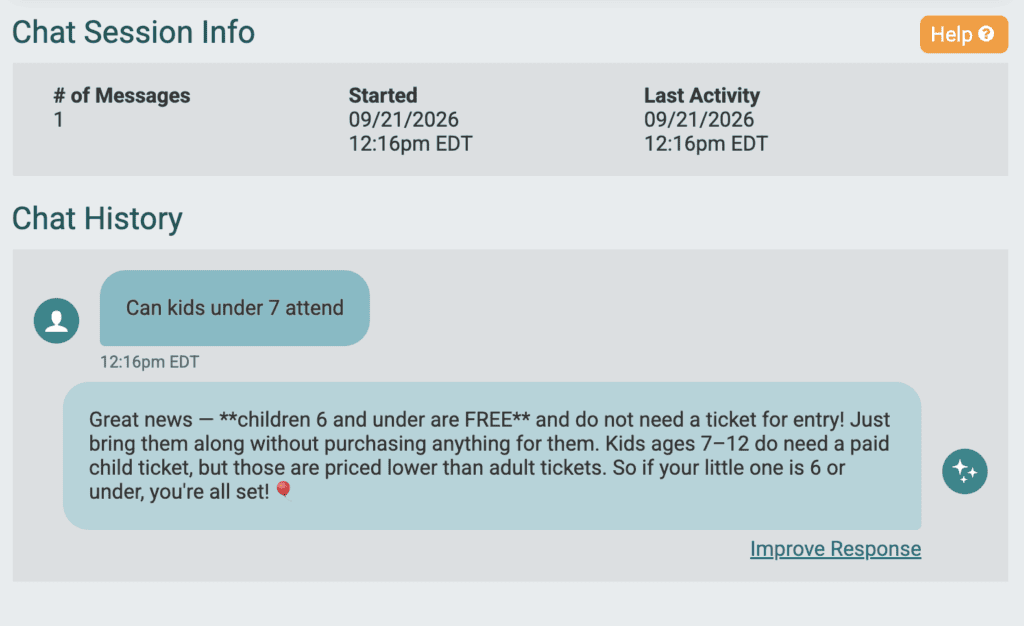
- Custom Responses. Select Improve Response and TicketSignup opens an Add Custom Response page with the prompt and answer already filled in. Edit either field and save. Everything you save lands on the Custom Responses page, with Edit and Delete beside each entry. Use your FAQ component for questions most attendees have, like parking or age policies. Use a Custom Response for the occasional question that does not need a public entry. If an answer is wrong because something on your event website hasn’t been updated, fix the event setting or the website content instead. A Custom Response layered over stale information hides the problem rather than solving it.
The AI-powered Contact Us form runs on the same knowledge base and the same MCP tools. Some attendees open the chat bubble and some fill out the form, and both get the same answer from the same live event data. The contact form also keeps a path to a person, so anything the AI cannot resolve still reaches your staff.