
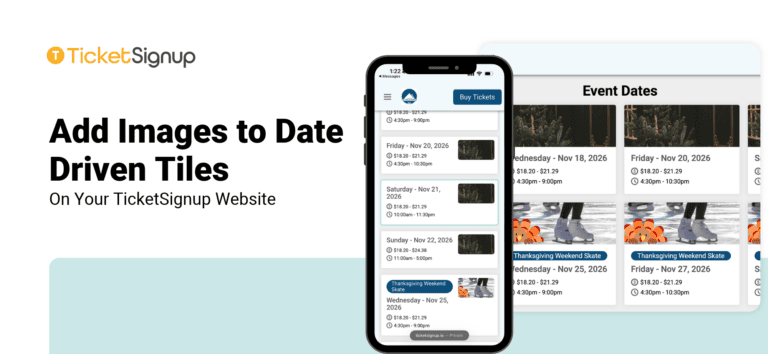
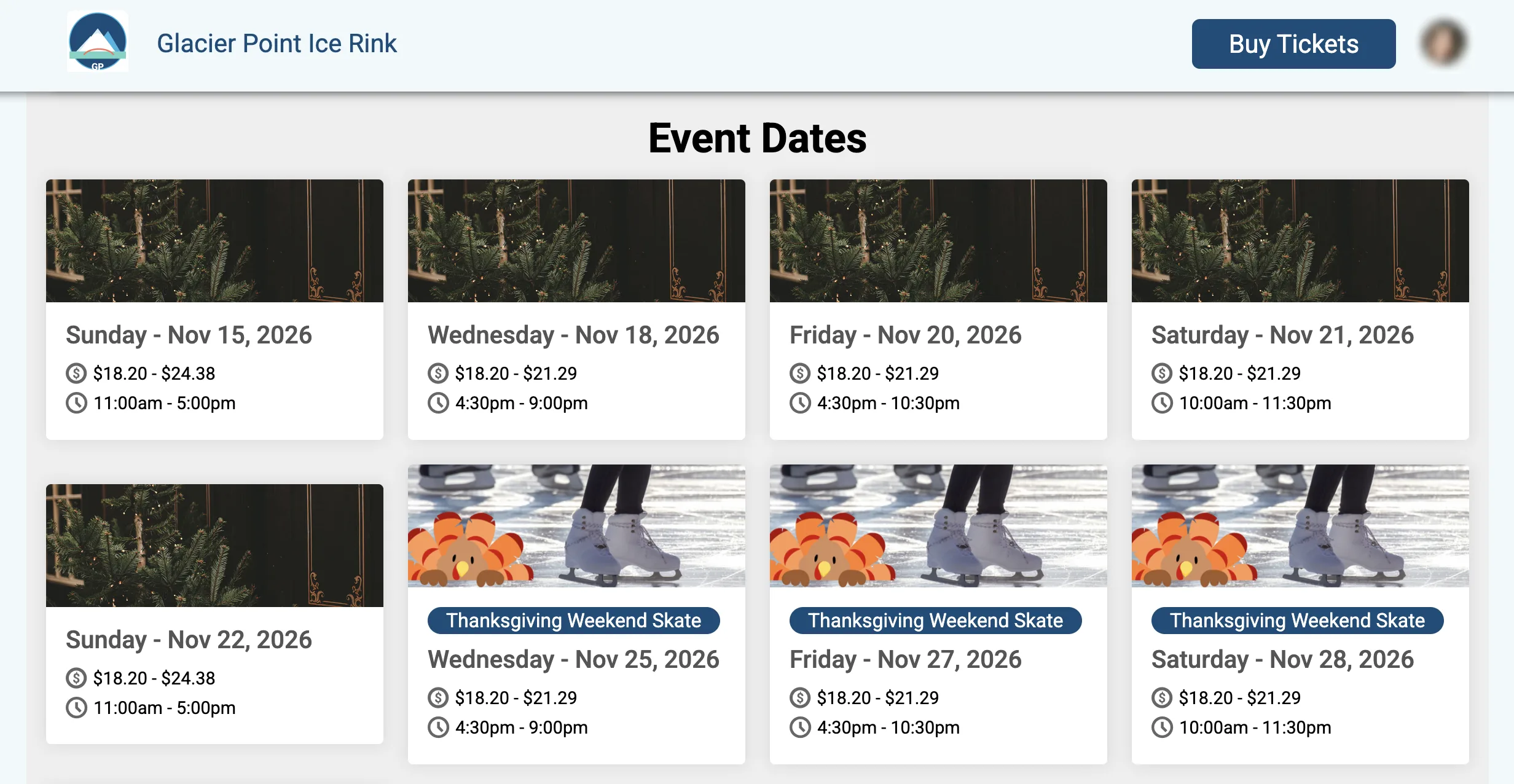
For calendar-based events, Date Driven Tiles show your event dates on your free TicketSignup website, with price and time details on each tile. You can now add an image above each tile, so guests see the feel of your event before they pick a date.
Add an Image to a Tile Design
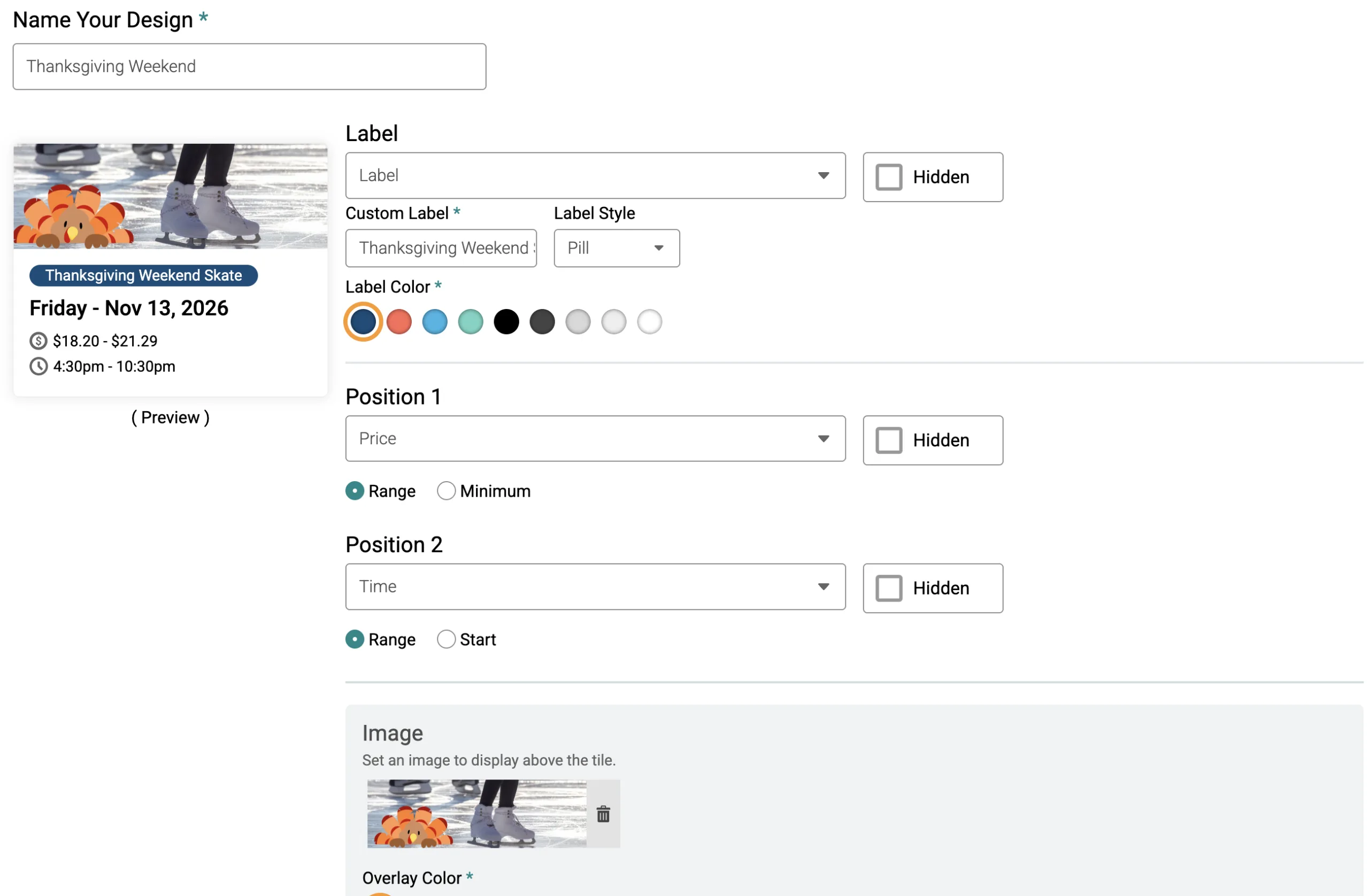
Images are part of your tile design. Open Date Driven Tiles Settings in the website builder, then click Create a new design or Edit this design.
In the Image section, click Add an Image to set an image above the tile. You can also pick an Overlay Color to place over the image.
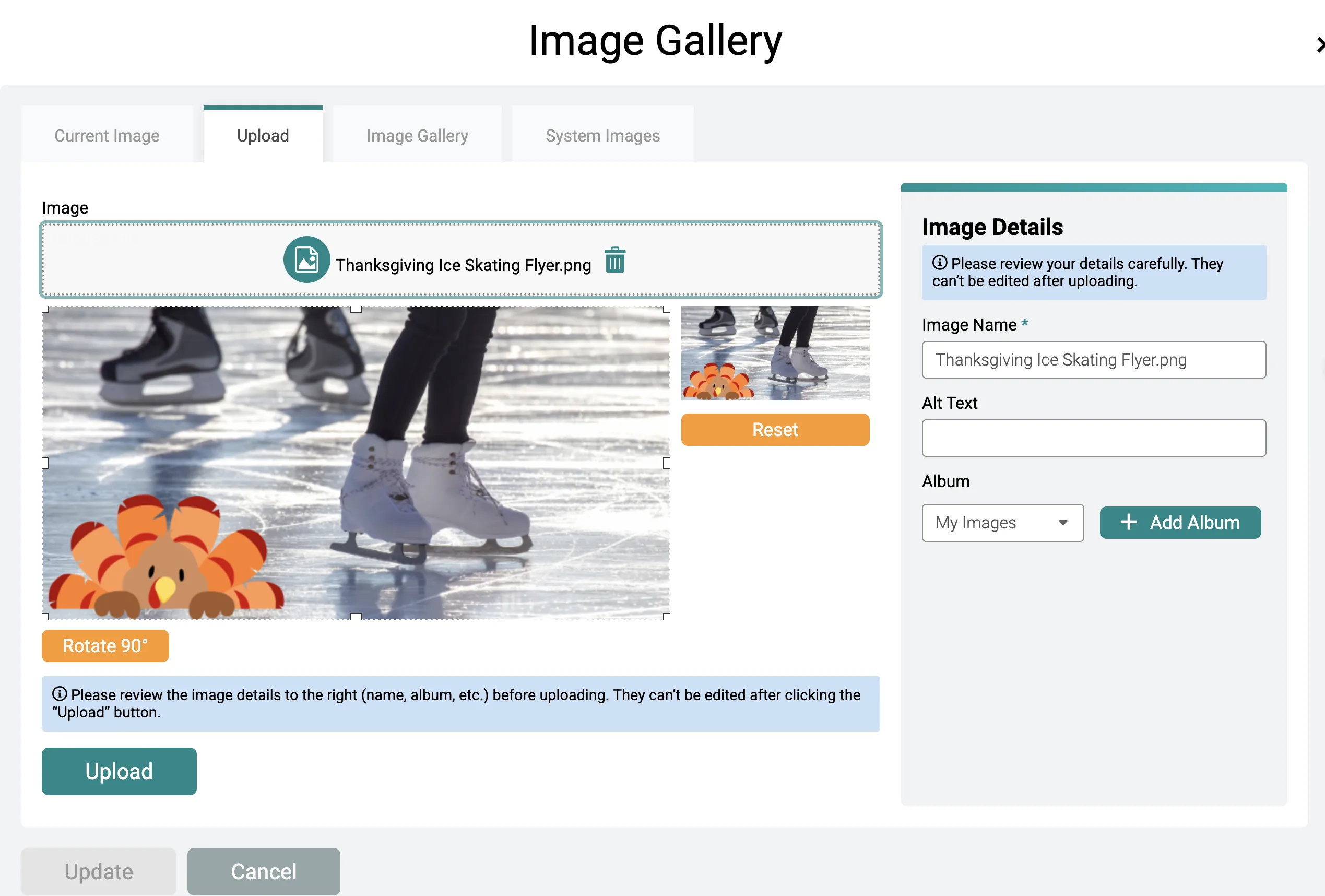
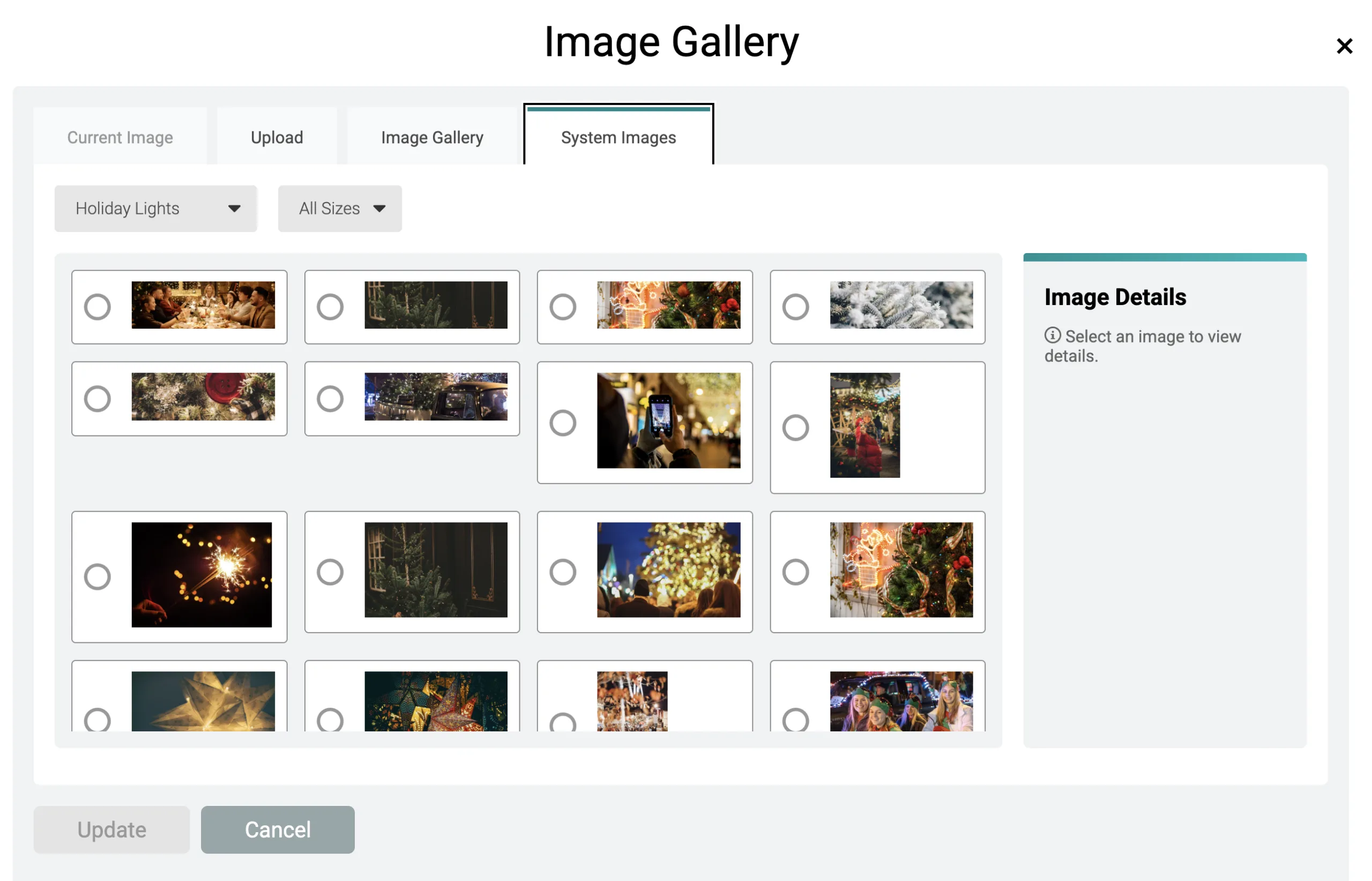
The Image Gallery gives you a few ways to find the right photo:
- Upload: Add your own image, then crop or rotate it to fit the tile. Give it a name and alt text, and save it to an album.
- Image Gallery: Reuse images you’ve already uploaded.
- System Images: Browse built-in images by category, like Holiday Lights.
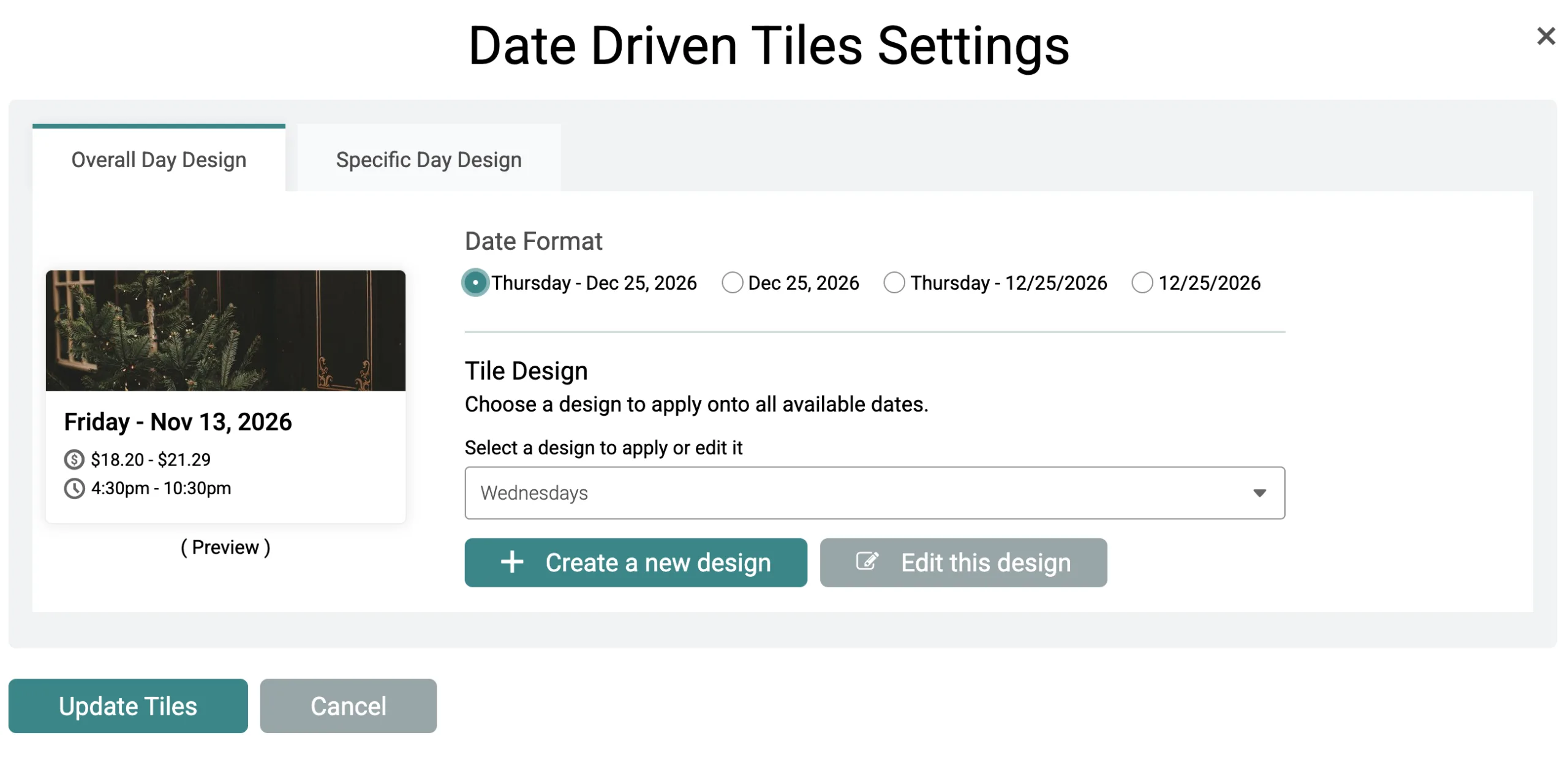
Tile designs work at two levels:
- Overall Day Design applies one design to all available dates. Set a seasonal image once, and every date picks it up.
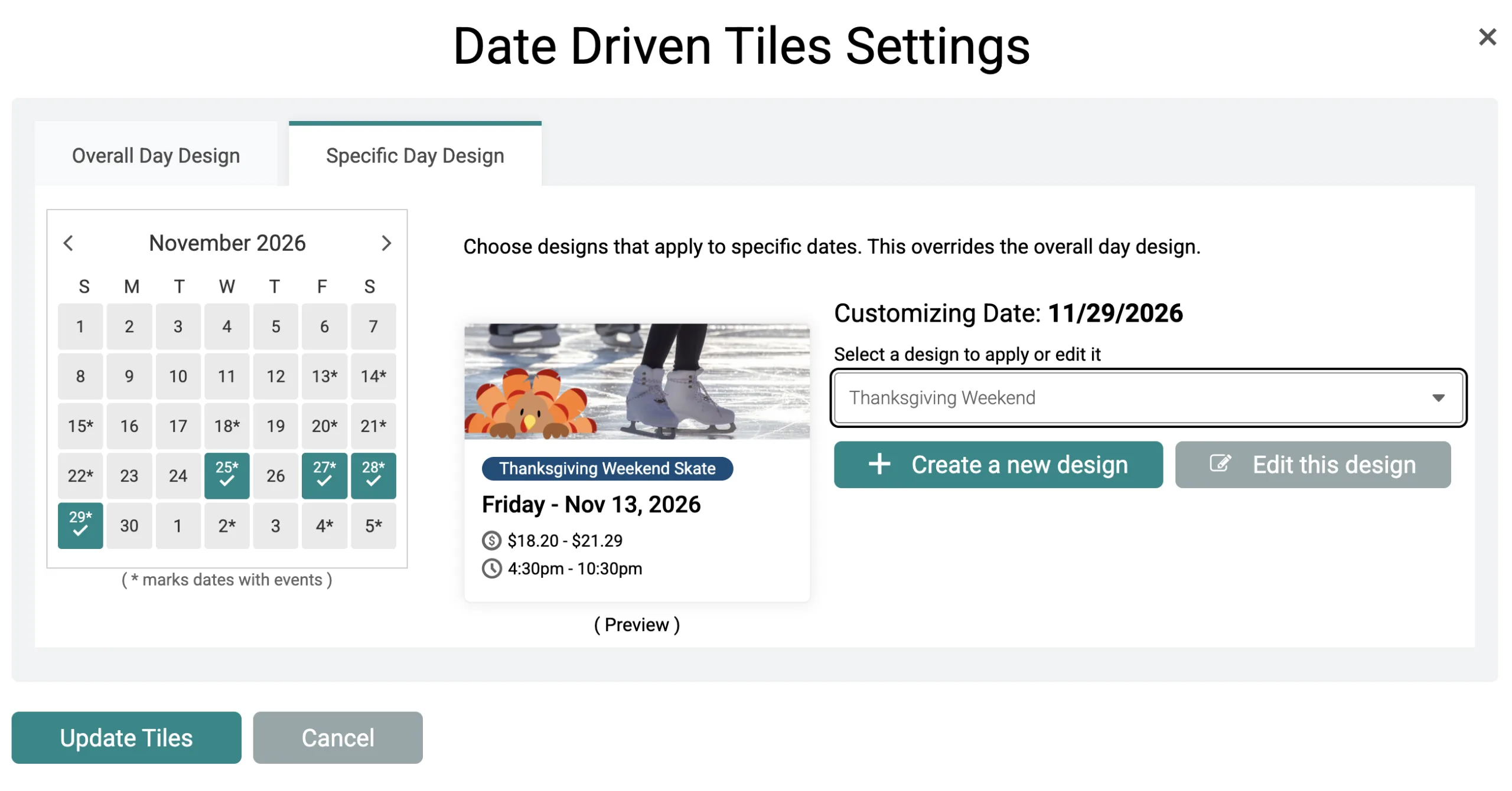
- Specific Day Design applies a design to the dates you choose and overrides the overall design.
Images on Date Driven Tiles are available now for TicketSignup calendar-based events. Open your website builder, edit your Date Driven Tiles component, and add an image to your tile design.