In September, we launched ticket categories for calendar-based events. Categories group your ticket levels into named sections like General Admission, VIP or Members, so buyers find the right ticket faster.
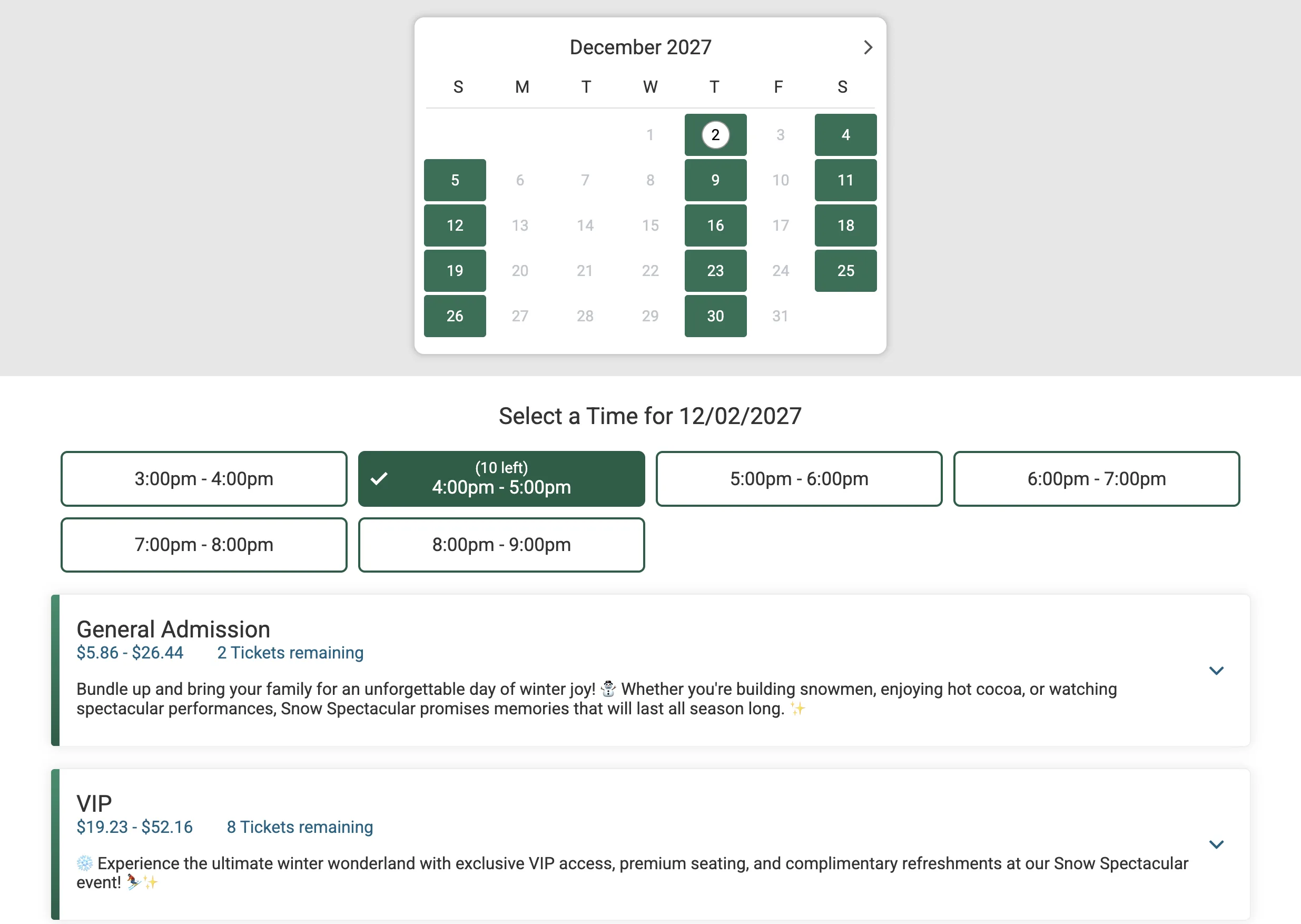
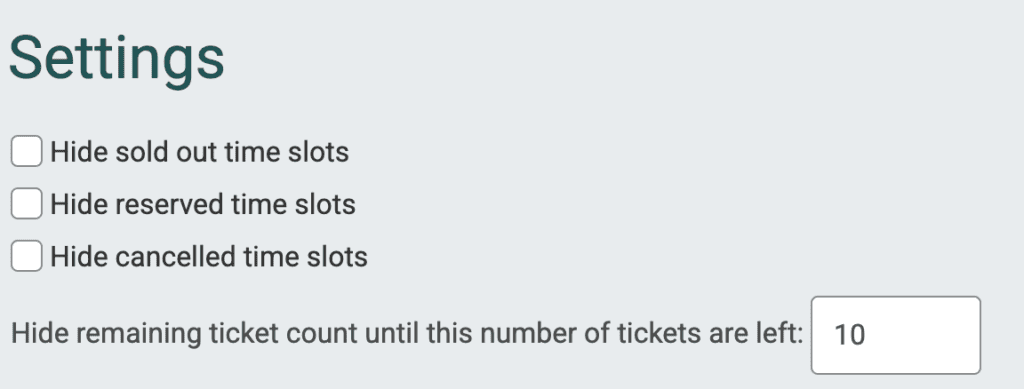
Now each category can show its price range and tickets remaining for the selected time slot. Buyers compare options at a glance before they open a category, or they see the ranges and tickets remaining for an auto-expanded category.
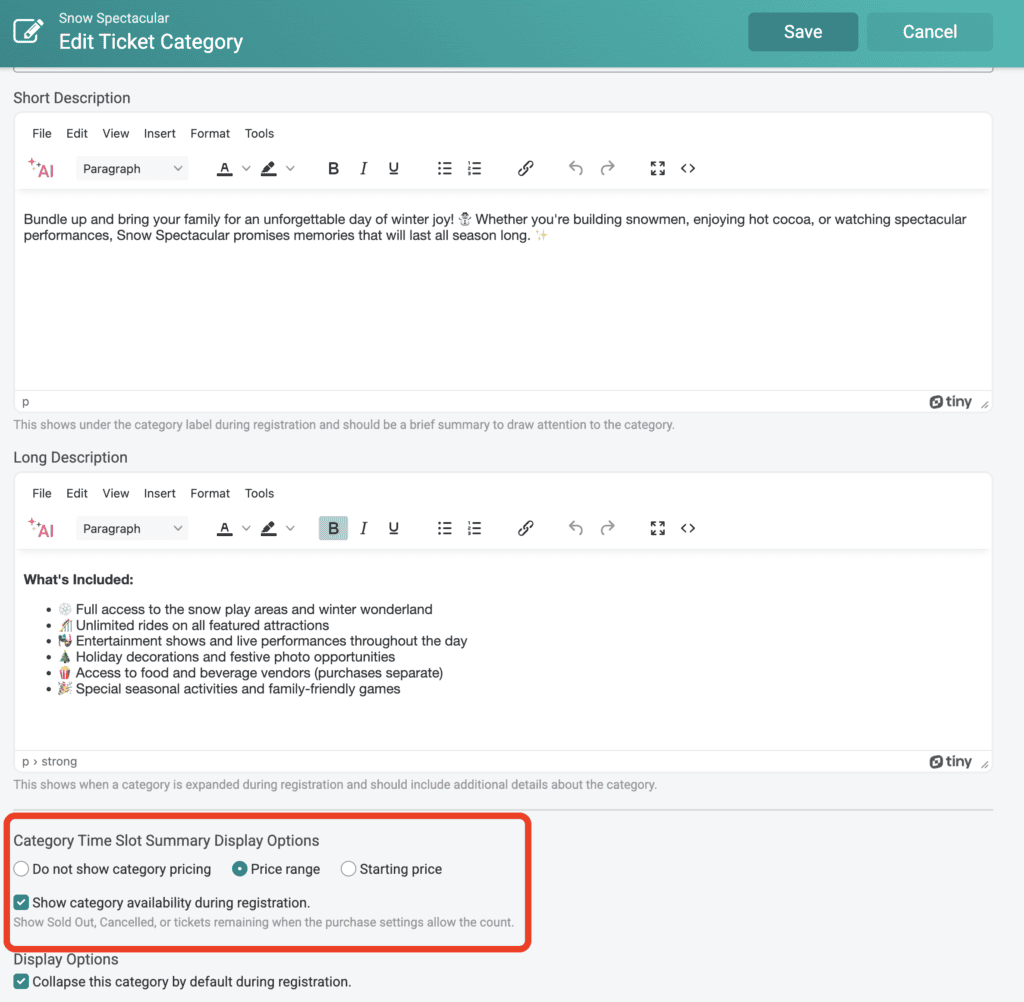
You can enable these dynamic display settings by going to Tickets >> Registration Path >> Ticket Categories. Click into a category and enable the dynamic pricing and cap settings you’d like to show. Note that you can update overall rules by going to Event >> Settings >> Purchase Settings.
Link Directly to a Category
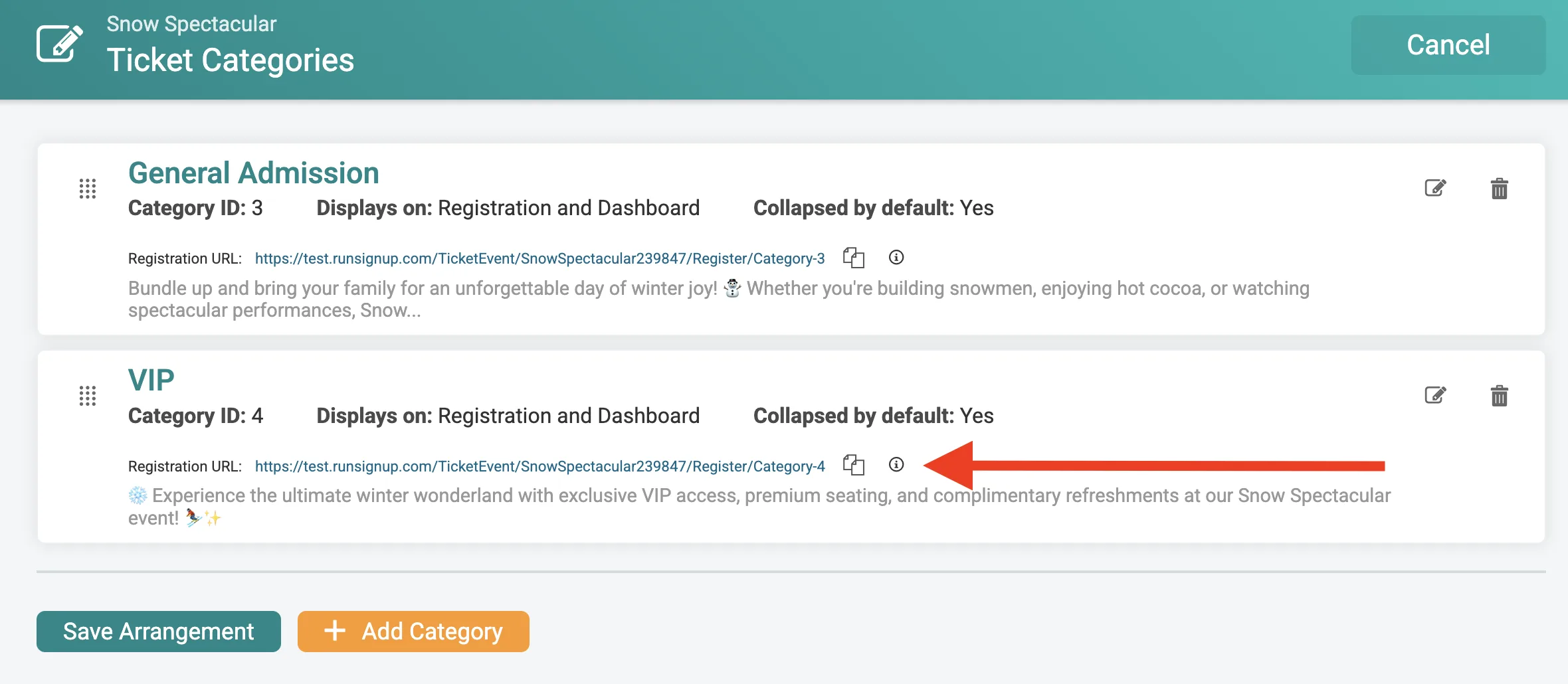
Every category has its own registration link. Send buyers straight to the tickets they need:
- Link members to only the Members category from your member newsletter or member website
- Promote a VIP experience with a link that opens only VIP tickets
- Add a “Book a Group Visit” button on your website that goes straight to group tickets
Categories in Self-Serve Ticket Transfers
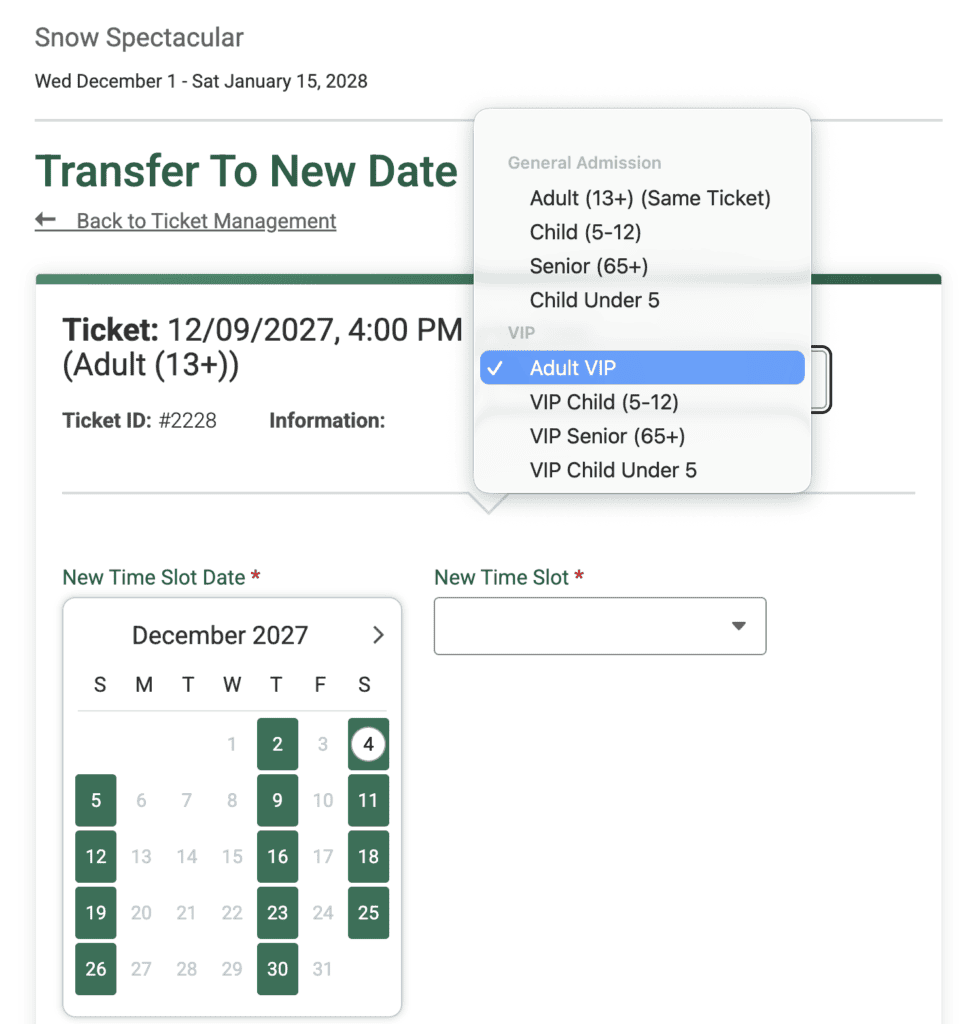
When attendees transfer their tickets to a new date or time, they see the same categories they saw at purchase. Events with many ticket options stay easy to navigate after the sale too. No setup needed: if your event uses categories and self-serve transfers, categories appear automatically.
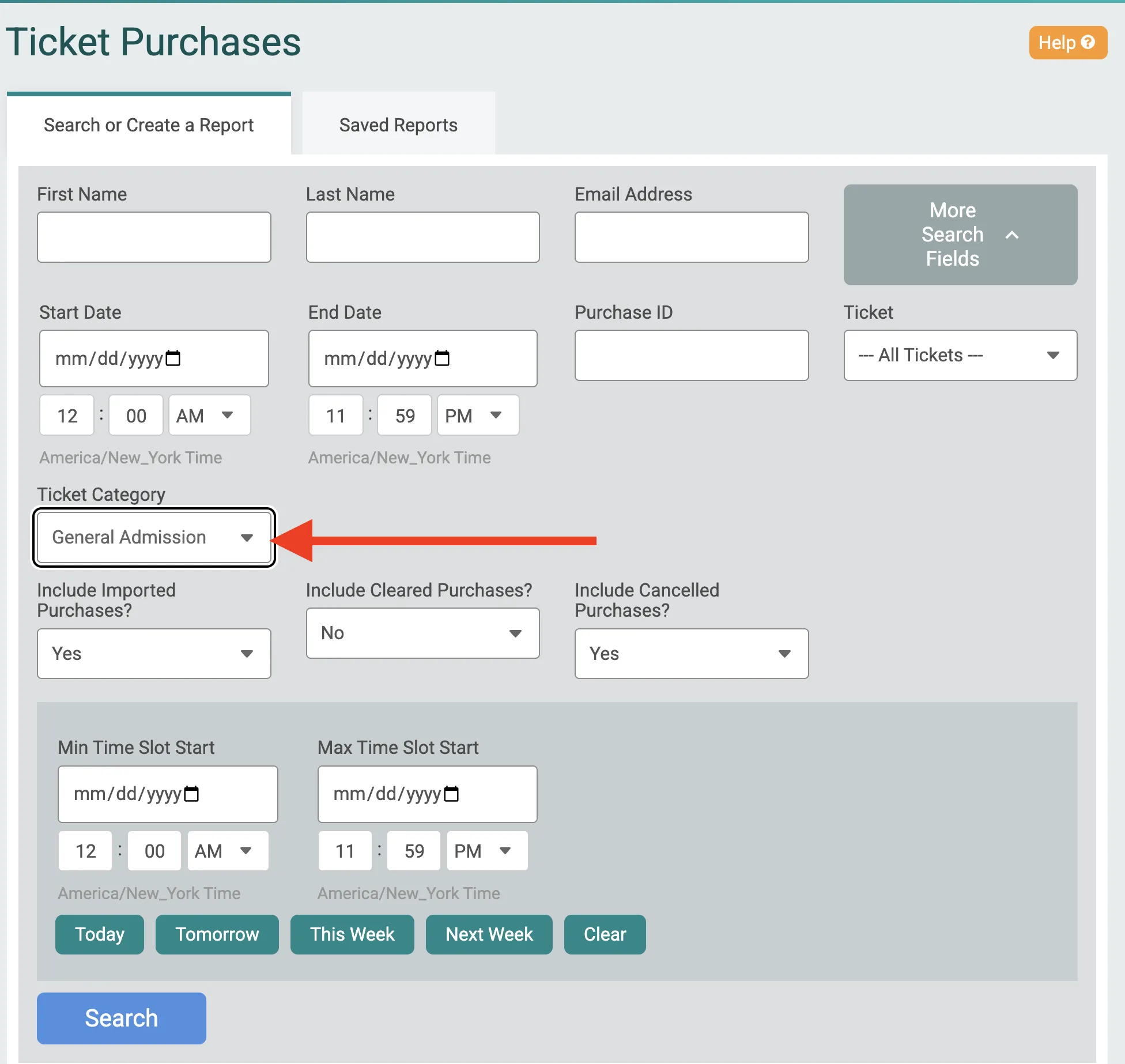
Filter Reports by Category
Category filters are now available across your dashboard, including the Schedule view, the Purchases list and the Per Ticket report. See how VIP tickets are selling on a given day, or pull a list of everyone who bought a Members ticket. Look for the category filter at the top of each report.