
Your event website is your community’s front door. So why should that door be labeled with someone else’s address?
TicketSignup supports using custom domains — meaning you can send participants to YourEvent.com instead of TicketSignup.com/Event/YourEvent. You bring the domain; we handle the hosting, SSL certificate, and all the infrastructure behind it, at no charge.
Here’s everything you need to know to get set up.
Why Use a Custom Domain?
A custom domain does more than look polished. It signals that your event has a permanent home on the web — one you control. It keeps your brand front and center through every email, social post, and word-of-mouth recommendation. And because your TicketSignup website already brings together ticketing, event information, and attendee management in one place, your custom domain becomes the single destination for everything your audience needs.
No more juggling a separate race website, a separate registration link, and a separate results page. It’s all at YourEvent.com.
Two Ways to Set Up Your Custom Domain
There are two configurations to choose from, depending on your situation.
Option 1: Root Domain (e.g., hillvalley88miler.com)
A root domain setup points your top-level domain — the whole thing — directly to your TicketSignup website. This is the right choice if your event’s website is your primary online presence.
When you set this up, both hillvalley88miler.com and www.hillvalley88miler.com will point to your event site. You’ll configure two DNS records at your domain registrar: an A record for the root and a CNAME record for the www subdomain.
Option 2: Subdomain (e.g., register.hillvalley88miler.com)
A subdomain lets you dedicate a specific section of an existing domain to your event site. This is particularly useful if:
- You already have a primary organization website and want to keep it intact
- You run a race series and want location- or event-specific URLs (e.g., boston.myraceeries.com, seattle.myraceseries.com)
- You want a clean, dedicated URL for a specific function — like register.myclub.org or donate.mycharity.org
For a subdomain, you only need to add a single CNAME record at your registrar — simpler than the root domain setup.
What the Setup Process Looks Like
Regardless of which configuration you choose, the process follows the same stages:
1. Get your domain. You’ll need to own a domain (or subdomain’s parent domain) from a registrar that lets you edit DNS records, such as GoDaddy. TicketSignup currently support .com, .net, and .org extensions. You’ll also need an approved payment account associated with your race.
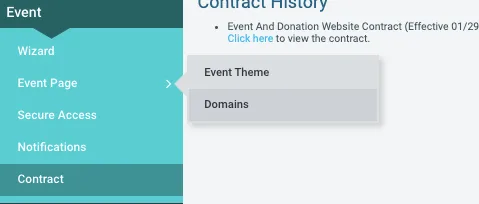
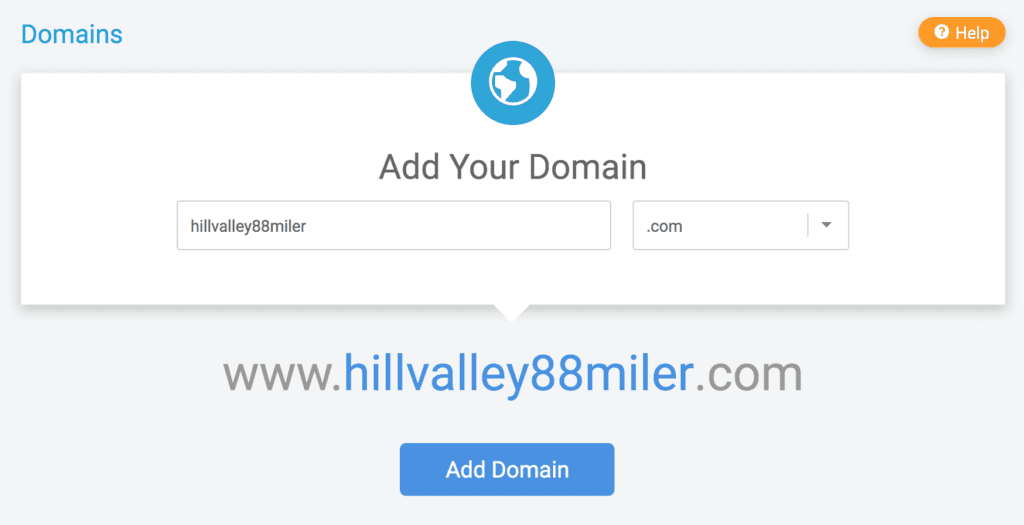
2. Initiate the request. In your race dashboard, navigate to Race > Race Website > Domains and enter the domain you want to use.
3. Validate ownership. TicketSignup will provide TXT records to add to your DNS zone. This step proves you own the domain and allows an SSL certificate to be issued. You have 72 hours to complete it, and TicketSignup checks for the records every 30 minutes. Importantly, TXT records don’t affect where your website currently points — so there’s zero downtime during this step.

4. SSL certificate issued. Once ownership is confirmed, TicketSignup automatically generates a free SSL certificate in the background, typically within 30 minutes.

5. TicketSignup provisions your domain. During U.S. business hours (7AM–8PM ET), TicketSignup sets up the infrastructure to handle traffic for your domain.

6. Point your DNS. You’ll then update your DNS records with the values provided — an A record and CNAME for root domains, or just a CNAME for subdomains. TicketSignup checks for the correct setup every 30 minutes.
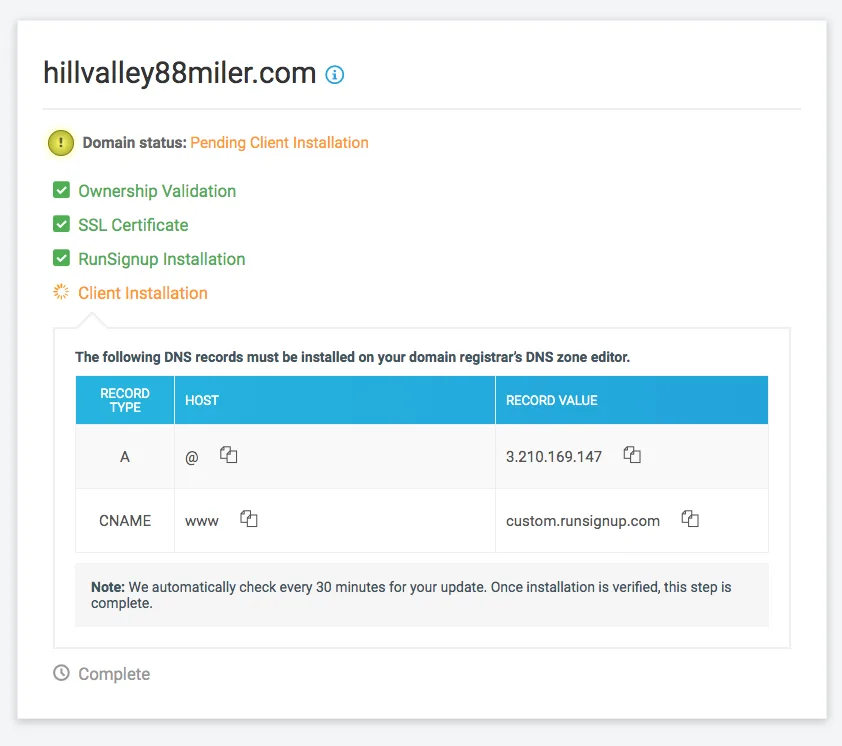
7. Go live. Once detected, your domain is live. SSL certificates renew automatically, and any updates to your race website are immediately reflected at your custom URL.

A Few Things to Keep in Mind
- You can have multiple subdomains (and domains) pointing to the same TicketSignup website — great for race series or organizations with multiple events under one umbrella.
- Once your site is live, don’t put it in draft mode, or it will take the site offline for visitors.
- Make sure you only have one A record for @ and one CNAME record for www in your DNS settings.
- If you have domain forwarding configured at your registrar, you’ll need to disable it before editing your A record.
Get Started
Custom domains are free on TicketSignup — all you need is the domain itself. If you’re ready to give your event its own corner of the internet, the full setup guides are here:
Questions? Reach out to your account manager or email info@ticketsignup.io.